Export data for kitting registration
Export data for kitting registration in CSV format.
About paid plans
This function is for paid plans (Premium).
Please purchase a plan when using this service.
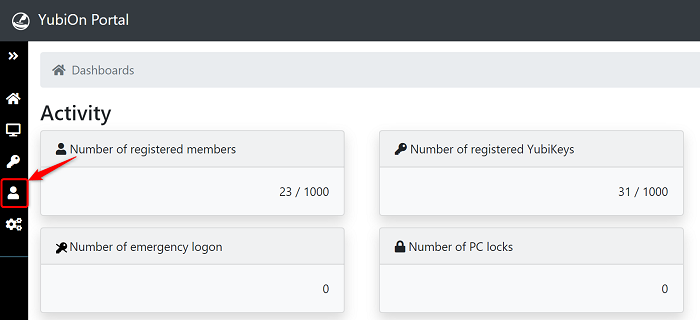
- Click on “Member management” from the menu on the left side of the screen.
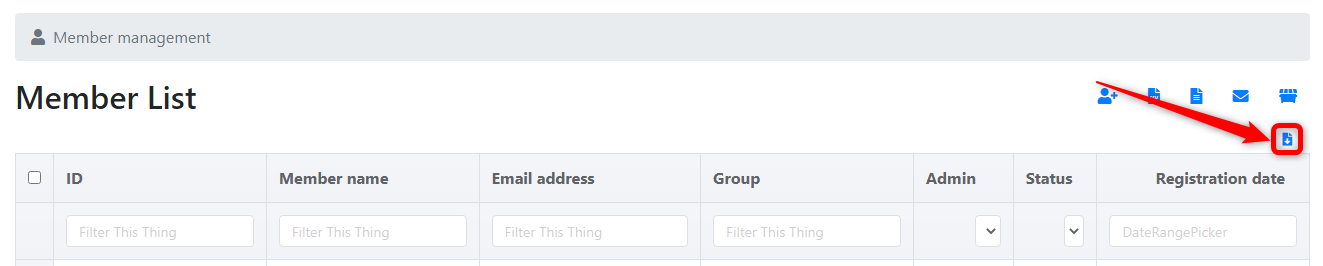
- Click on the “Export kitting data” icon.
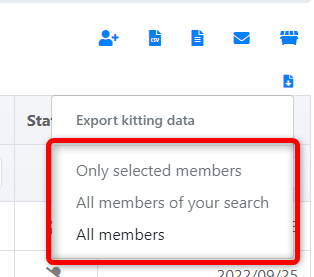
- Select the member(s) to which you wish to export data from the following
- Only selected members
- All members of your search
- All members
-
1st (column A): Member ID
- 2nd (column B): Member name
- 3rd (column C): Email address
-
4th (column D): Group
-
5th (column E): Administrator
- 0: General
- 1: Administrator
-
6th (column F): YubiKey Serial No.
-
7th (column G): OS
-
8th (column H): PC ID (SID or UUID)
-
9th (column I): PC Name
-
10th (column J): Account name
-
Local accounts
Enter the local account name. -
Microsoft accounts
Enter your Microsoft account email address. -
Active Directory accounts (including Hybrid Microsoft Entra Join)
Specify in the format “(domain NetBIOS name)\(account name)”.
(*) If the client has configured User Principal Name (UPN) usage settings, specify the UPN. -
EntraID accounts
Specify in the format “AzureAD\(EntraID account email address)”.
About exported members
Only YubiKey and member information to which the account is assigned will be exported.
The file “yyyyymmdd_KittingExport.csv” will be downloaded.
Please use this CSV for uploading when registering kitting CSV.
About CSV file format
When opened in a text editor, they will be comma-delimited.
The following is an explanation when opened in Microsoft Excel.
The following is an explanation when opened in Microsoft Excel.
About account display methods
Depending on the account type, the account name will be displayed as follows.
When entering the account name directly, you can specify it using the same notation method.
That’s all for data export for kitting registration.